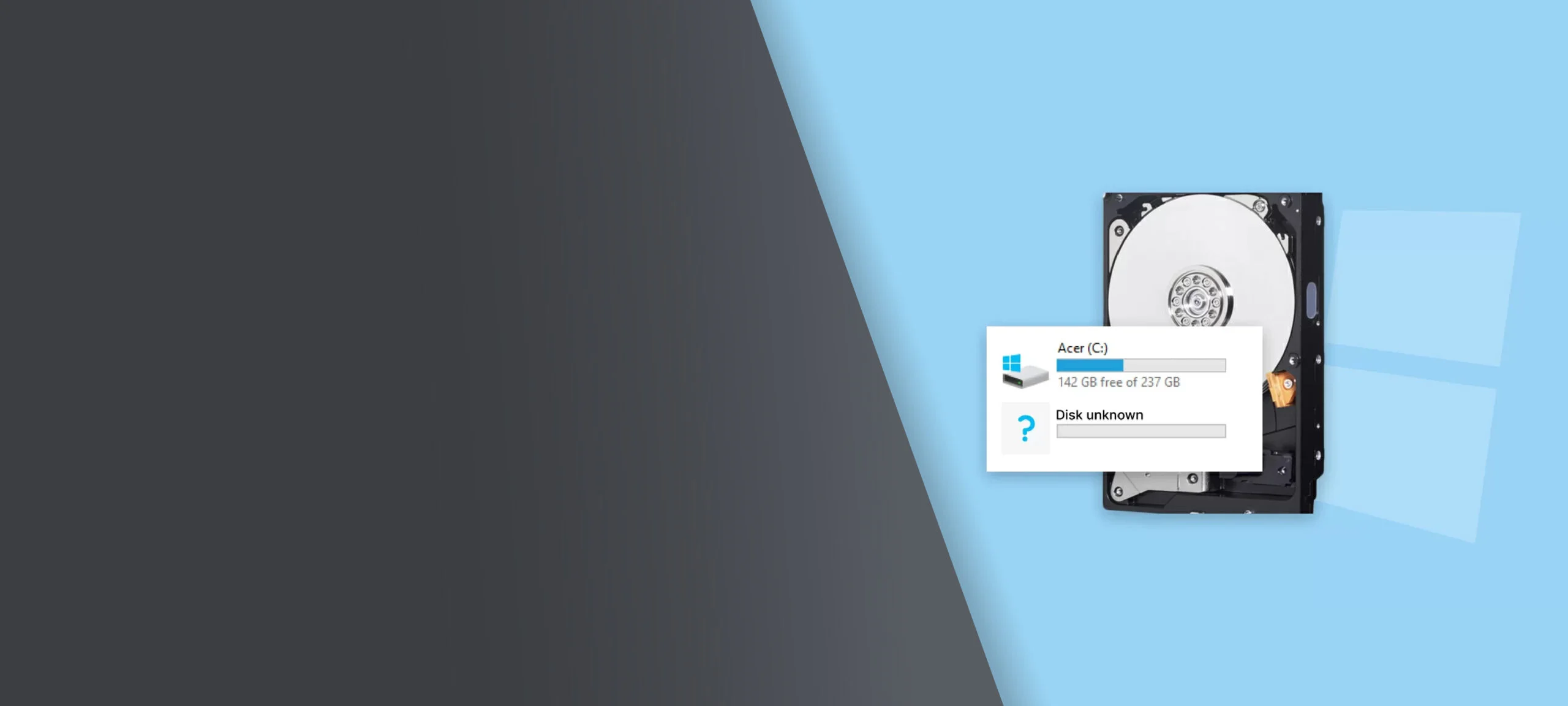
Why Your Hard Drive Isn't Showing Up
Several reasons exist why a hard drive might not appear on your computer. Sometimes it's a minor connection issue. Other times, it could point to physical damage or corruption inside the drive. Understanding what might be happening helps you know what to try—and what to leave alone.
Common causes include:
- Loose or faulty USB port
- A damaged file system
- Power issues or bad cables
- Errors with the operating system
- Mechanical failure inside the drive
Whether it's a desktop drive, portable external disk, or flash drive, the symptoms are similar. It powers on—or maybe it doesn't—but your system can't detect it.
Windows and macOS: Same Problem, Different Fixes
If your hard drive is not showing up on Mac, start by opening Disk Utility. The drive may appear there but not mount properly. Sometimes the Mac not recognizing the drive in Finder doesn't mean it's completely gone.
On Windows, open Device Manager and look under disk drives. You can also check System Information and Disk Management. If your Windows device doesn't list the drive anywhere, it's likely a hardware failure or file system issue. It's a common situation—your hard drive does not show up, even though it worked yesterday.
Safe Troubleshooting You Can Try
You can rule out simple problems with a few safe checks:
Check the cables and ports
Try a new USB cable and a different USB port. Cables fail more often than you might expect.
Try a different computer
See if the drive shows up on another system to rule out device-specific issues.
Restart and check settings
A reboot can reset system detection. Also, open your system settings to ensure the drive hasn't been disabled.
Look in system tools
On Mac: Open Disk Utility. On Windows: Use Device Manager, Disk Management, or System Information. If your drive is there but shows up as "RAW" or unallocated, that indicates file system corruption.
What You Should Not Do
Trying to fix things yourself can make the problem worse. We regularly see people permanently lose data after trying one of the following:
- Clicking "format" or "erase" when prompted
- Running recovery software without checking for physical issues
- Constantly unplugging and replugging the drive into different ports
- Attempting to rebuild a partition on an unstable drive
If your goal is fixing the hard drive and saving your files, these DIY steps can do the opposite. Drives with mechanical problems should only be opened in a cleanroom. Each time you power them on, you risk damaging your data more.
Why First Aid and CHKDSK Can Make Things Worse
When your hard drive doesn't appear, it's tempting to use tools like First Aid on a Mac or CHKDSK on Windows. But they can cause permanent data loss if your drive is damaged.
First Aid on Mac: Risky for Failing Drives
First Aid, found in Disk Utility, is made to fix basic file system issues. But when the drive is unstable or corrupted, First Aid might shift or rewrite data structures. That can cause files to vanish or prevent the drive from mounting at all. We've seen cases where running First Aid made some data completely inaccessible. This is especially true for older or dropped drives.
CHKDSK on Windows: Can Delete Your Data
CHKDSK helps users find and fix errors on Windows computers, but it does not address failing hardware. It often deletes file pointers that it considers broken, which can wipe out your actual files. If your external storage device is failing, CHKDSK may overwrite valuable data while trying to mark bad sectors.
What Makes a Drive "Unrecognizable"?
When a drive becomes unrecognizable, it means your computer can no longer communicate with it properly. This can happen due to two main types of failures: logical and physical.
- A logical failure occurs when the structure of your data is damaged. This might include corruption in the file system, missing partitions, or a drive that appears unallocated. In these cases, the computer might still "see" the drive, but it can't understand what's on it.
- A physical failure means something is wrong with the internal hardware. That might be a damaged read/write head, a failed motor, or an issue with the drive's circuit board. These problems often show up as clicking, grinding, or beeping sounds.
Understanding File System Corruption
The file system acts like a map—it tells your computer how to find and access your files. When the file system gets damaged, your files might still remain on the drive, but your computer no longer knows where to find them.
Corruption can happen for many reasons. It can occur if you remove the drive during a file transfer. Power surges, improper ejection, or failing hardware can also cause it. On Mac, this often appears as an unmounted drive in Disk Utility. On Windows, it might appear as "RAW" or "unallocated" in Disk Management.
The good news? File system corruption can often be fixed. Just stop using the drive and do not run any repair tools. Instead, a professional can clone the drive and extract your data safely.
Real-World Recovery Examples
Here are a few real cases we've handled that started with a hard drive not being recognized:
A photographer dropped a portable external drive while traveling. It didn't appear on their MacBook afterward. We diagnosed internal head damage and performed a cleanroom recovery to restore over 10,000 RAW image files.
A college student's Windows laptop wouldn't boot, and their external backup didn't appear in File Explorer. We found file system corruption and safely recovered their documents and semester projects.
A business client brought in a flash-based external storage unit that failed after a system update. The device wouldn't mount, but we imaged the drive and recovered customer records that we would have permanently lost.
Even with good habits, failure can still happen—but early detection and fast action can prevent permanent data loss.
When to Call a Recovery Expert
If your hard drive not showing up on Mac or Windows continues after basic checks, it's time to contact a pro. Don't keep experimenting—especially if the drive makes noises or clicks. That's a sign of physical failure.
At Five Star Data Recovery, we specialize in safe recoveries from:
- Drives with corrupted or unreadable partitions
- Damaged storage media devices (internal or external)
- Accidentally formatted or deleted drives
- Broken USB ports or failed connection issues
We recover data from HDDs, SSDs, and flash devices of all brands. We will return the recovered files on a new drive or through secure transfer.
What to Expect From Us
Once you submit your quote request, our team will review the details you provide and respond with an accurate, initial price estimate based on your device type and symptoms. Once we receive your actual device, our engineers will perform a full diagnostic to confirm the issue and finalize your quote—always staying within the same pricing tier unless the issue turns out to be different than described.
You'll also receive a clear turnaround estimate, so you know what to expect. For many standard cases, we're able to recover and return your data within just a few days. All recovery work is performed 100% in-house at our Glendale, CA lab, ensuring your data stays private, secure, and never outsourced.
Whether you're dropping off locally or using our nationwide mail-in service, you'll receive fast communication and professional care.
If your hard drive is not showing up, stop troubleshooting on your own. One wrong click can make things worse. Let Five Star Data Recovery handle it with care.
- Visit us in person or mail in your drive
- Call now for a free evaluation
- Safe. Fast. Professional recovery every step of the way.